IntuneWinAppUtil GUI
PowerShell module with a WPF front-end that wraps Microsoft's IntuneWinAppUtil.exe (the Microsoft Win32 Content Prep Tool), making it quicker and less error-prone to package Win32 apps for Intune. It is built with WPF (XAML) and PowerShell only, with no external dependencies.
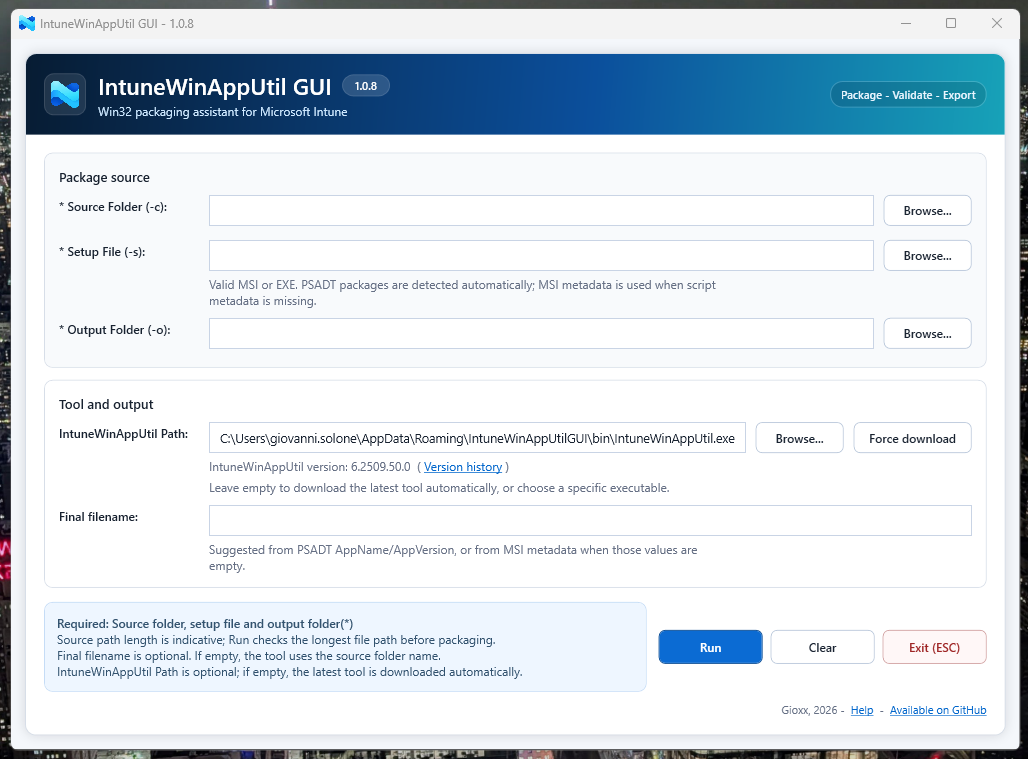
Besides filling in the -c, -s and -o switches for you, the GUI downloads and caches the prep tool, recognises PSAppDeployToolkit and MSI packages to propose the setup file and package name, warns about paths that are too long, renames the generated .intunewin file and remembers your settings. The module also ships a FileVersion helper and a ready-to-adapt Intune detection script.
- 1.1.4: the result panel has a Copy path button that copies the full path of the new
.intunewinfile. The Output Folder field remembers the last 10 folders used for a successful package in a drop-down; Clear recent empties the list. - 1.1.3: fixes packaging failing with exit code
-2147024891(access denied):IntuneWinAppUtil.exenow runs without its own console window, which is what triggered the error. Packages are built in a temporary folder and copied to the output folder only when complete, so Dropbox and OneDrive never see a half-written file. A progress overlay shows the packaging step and an estimated percentage. Errors show the last lines of the tool output, and-Diagwrites a detailed log of every run. See Troubleshooting. - 1.1.2: if one of the module's scripts fails to load, the import now stops with an error naming the file, instead of carrying on with functions missing.
- 1.1.1: the module works again in Windows PowerShell 5.1, the PowerShell built into Windows (versions 1.0.7 to 1.1.0 failed to import there). If you use 5.1, update with
Update-Module IntuneWinAppUtilGUI. - 1.1.0: the Setup File field accepts any file type, not only EXE and MSI: PowerShell (
.ps1),.batand.cmdscripts, MSIX packages and so on. See Packaging scripts and other file types. Typing in the Source Folder field no longer lags: the folder scan used for auto-detection now waits until you stop typing and runs in the background.
Demo and repository
- Source code: github.com/gioxx/IntuneWinAppUtilGUI
- PowerShell Gallery: IntuneWinAppUtilGUI
- Releases and changelog: github.com/gioxx/IntuneWinAppUtilGUI/releases
Key features
- GUI for all the switches
IntuneWinAppUtil.exeneeds (-c,-s,-o), with browse dialogs. - Any file can be the setup file: EXE, MSI, PowerShell/batch scripts, MSIX and more, with a reminder when the Intune install command needs to match a non-EXE/MSI file.
- Auto-download and local cache of
IntuneWinAppUtil.exe, with a Force download button to refresh it and the detected tool version shown in the window. - PSAppDeployToolkit detection: proposes
Invoke-AppDeployToolkit.exeas setup file and builds the package name fromAppName/AppVersion, falling back to the MSIProductName/ProductVersion. - Optional final filename, with invalid characters removed and a collision-safe rename (
_1,_2, ...) so existing packages are never overwritten. - Live path-length indicators for the Source and Output folders, plus a check of the longest file path in the source before packaging.
- Packages built in a temporary folder and copied to the output folder only when complete, so folders synced by Dropbox or OneDrive work reliably; temporary files are cleaned up after each run.
- Output folder created automatically if it does not exist, and the last 10 output folders remembered in a drop-down.
- When packaging completes, the GUI offers to open the folder with the new package selected or to copy the package path.
- Settings saved in
%APPDATA%\IntuneWinAppUtilGUI\config.json. - Non-blocking update check against the PowerShell Gallery, shown as a banner.
Get-IntuneFileVersioncommand to read the FileVersion used by Intune detection rules.- Ready-to-adapt Intune detection script,
Scripts/Intune_CheckAppInstallation.ps1.
Requirements
- Windows 10 or later (Windows 11 recommended).
- PowerShell 7 recommended; Windows PowerShell 5.1 is supported (use version 1.1.1 or later).
- .NET Framework 4.7.2 or later (usually already present on supported systems).
- Internet access to GitHub only if you let the GUI download
IntuneWinAppUtil.exe, and to the PowerShell Gallery for the update check.
In this section
- Installation and launch: Install from the PowerShell Gallery or the repository, and the launch switches.
- Packaging: The window, each packaging step, scripts and other file types, PSADT and MSI auto-detection.
- Configuration: IntuneWinAppUtil.exe download and cache, config.json, update check and keyboard shortcuts.
- Detection helpers: Get-IntuneFileVersion and the ready-to-adapt Intune detection script.
- Troubleshooting: Common errors and how to fix them.
- IntuneWinAppUtil.exe versions: Every release of the Microsoft tool and the FileVersion of its executable.
Repository structure
IntuneWinAppUtilGUI/
|- IntuneWinAppUtilGUI.psd1 / .psm1          # Module manifest and loader
|- Public/Show-IntuneWinAppUtilGui.ps1       # GUI entry point (Show-IntuneWinAppUtilGUI)
|- Public/Get-IntuneFileVersion.ps1          # FileVersion helper
|- Private/IWAPG-Hlp-Setup.ps1               # PSADT/MSI auto-detection, relative paths
|- Private/IWAPG-Hlp-Tool.ps1                # Tool download, cache and version
|- Private/IWAPG-Hlp-PathLength.ps1          # Path-length checks
|- Private/IWAPG-Hlp-UpdateCheck.ps1         # PowerShell Gallery version check
|- UI/UI.xaml                                # WPF window
|- Assets/                                   # Icons and screenshot
|- Scripts/Intune_CheckAppInstallation.ps1   # Detection script template
|- Tools/                                    # Upstream version table and maintenance scripts
|- Tests/                                    # Pester tests
`- README.md, LICENSE
Tests use Pester and run on GitHub Actions for pushes to main and for pull requests. To run them locally:
Invoke-Pester -Path .\Tests
Contributions
Issues and pull requests are welcome on GitHub.
License
MIT License. See LICENSE in the repository.